Oracle recently released first beta version of their upcoming desktop desktop virtualization software, VirtualBox 4.2. Improved support for Windows 8 guest OS is one of the major change in this version.
I have tried the latest (leaked)Windows 8 Enterprise RTM version on VirtualBox 4.2 and really experienced the improved display support on guest OS. VirtualBox 4.2 guest additions works well inside Windows 8 to get multiple screen resolution, auto resize, full screen and seamless mode.
You can read our previous guide about how to install Windows 8 on VirtualBox and requirements for it. If you want to try Windows 8 Enterprise RTM (which was leaked to torrents sites recently), search for ‘MICROSOFT.WINDOWS.8.ENTERPRISE.RTM.X64.VOLUME.ENGLISH.DVD-WZT’ on your favorite torrent site. You may get two results, and do not download the ‘NON_BOOT’ DVD which requires additional work to make it bootable. Download the correct file which is bootable.
VirtualBox automatically detects and changes the settings while typing ‘Windows 8’ on name field of virtual machine, therefore you do not need to modify most of the settings before power on, except loading the download ISO file.
But there was a slight issue of default display settings. Here is the default display settings for Windows 8.

I have tried the latest (leaked)Windows 8 Enterprise RTM version on VirtualBox 4.2 and really experienced the improved display support on guest OS. VirtualBox 4.2 guest additions works well inside Windows 8 to get multiple screen resolution, auto resize, full screen and seamless mode.
You can read our previous guide about how to install Windows 8 on VirtualBox and requirements for it. If you want to try Windows 8 Enterprise RTM (which was leaked to torrents sites recently), search for ‘MICROSOFT.WINDOWS.8.ENTERPRISE.RTM.X64.VOLUME.ENGLISH.DVD-WZT’ on your favorite torrent site. You may get two results, and do not download the ‘NON_BOOT’ DVD which requires additional work to make it bootable. Download the correct file which is bootable.
VirtualBox automatically detects and changes the settings while typing ‘Windows 8’ on name field of virtual machine, therefore you do not need to modify most of the settings before power on, except loading the download ISO file.
But there was a slight issue of default display settings. Here is the default display settings for Windows 8.
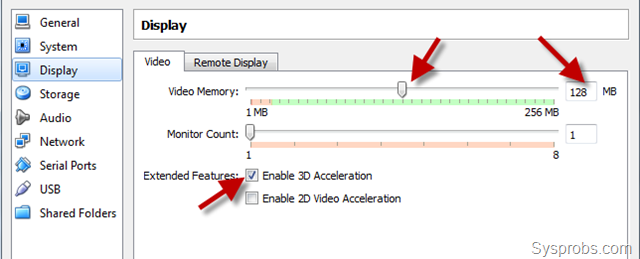
Windows 8 virtual machine started to crash and close while exiting from full screen mode with above default display setting. That is really strange when Oracle claims that VB 4.2 fixed several 3D issuesIt Started Crashing!